Saving as a Text File (.txt)
To keep a local copy of your notes from Tinseo Online Notepad, click File in the editor menu and choose Save As. This ensures that you always have a backup of your important documents.
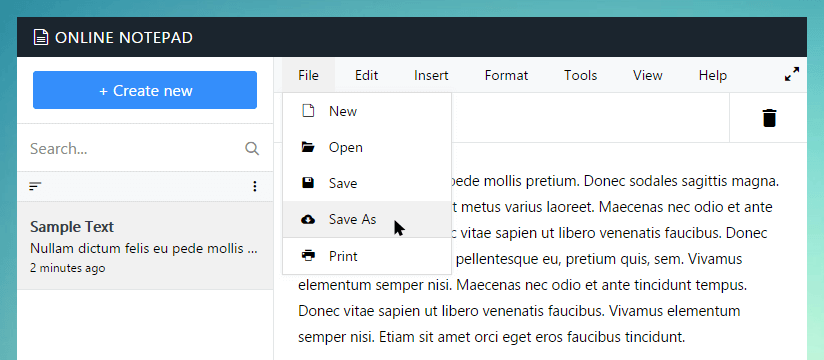
Tip: Use keyboard shortcutsCtrl + Shift + S(PC) orCommand + Shift + S(Mac) to open the Save As dialog instantly.
Enter the filename you want for your note. By default, it will use the document’s title, or Untitled Note if empty.
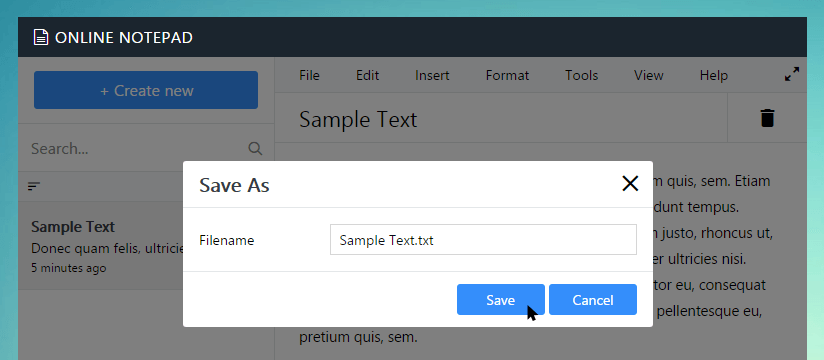
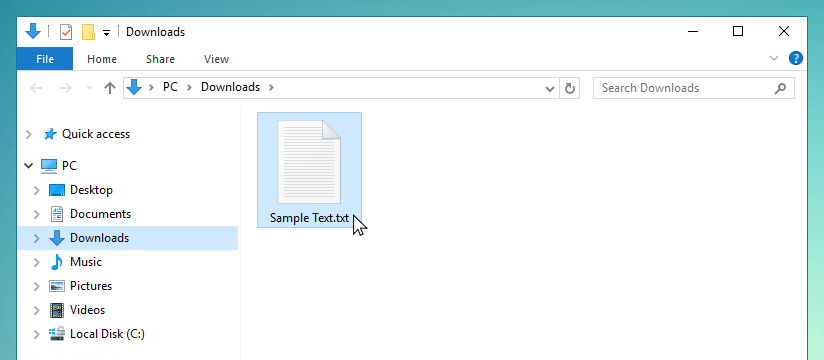
You can change the file extension if needed, but the default is .txt and the default title will use document title Tinseo Online Notepad as the file name. Click Save to download the file directly to your computer. It will usually appear in your Downloads folder.
Getting Started Guides
Here are some detailed step-by-step instructions that might help you get started use Tinseo Online Notepad