Opening Text Files (.txt)
One of the standout features of Tinseo Online Notepad is the ability to quickly open text files stored on your computer, eliminating the need to copy and paste your content manually.
Because Tinseo Online Notepad is a pure plain text editor, it only accepts files with the .txt extension. This keeps your notes clean, simple, and compatible with virtually any text editor or device.
To get started, click the File menu at the top of the editor, then select Open. A dialog window will appear, letting you browse through your computer's folders to locate the text document you want to work on.
For faster access, use the keyboard shortcut Ctrl + O on Windows or Command + O on Mac. Once you've selected your file, Tinseo instantly loads its content into the editor, ready for editing, updating, or adding new notes.
This feature is particularly useful for students, writers, journalists, and anyone who regularly works with text files. By opening your files directly in the browser, Tinseo saves you time and keeps your workflow smooth. Plus, you can edit and save changes without leaving the platform.
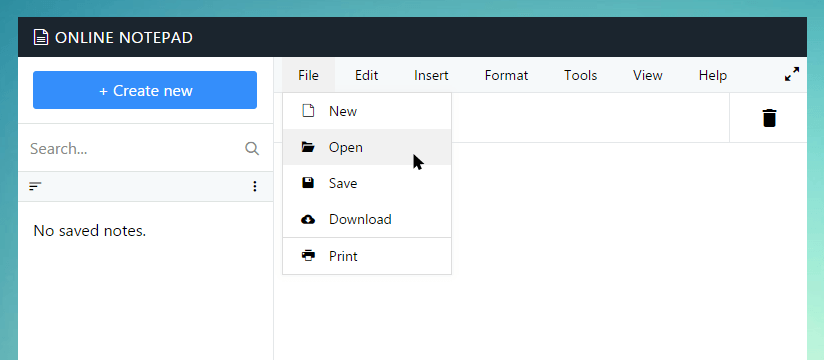
Quick Tip: Always check that your file has a .txt extension before opening. This ensures Tinseo can read it without errors.
After clicking Open, your text content will appear directly in Tinseo’s editor. From here, you can continue writing, make updates, or prepare it to save back to your computer. It’s a fast, reliable way to manage your notes entirely within your browser.
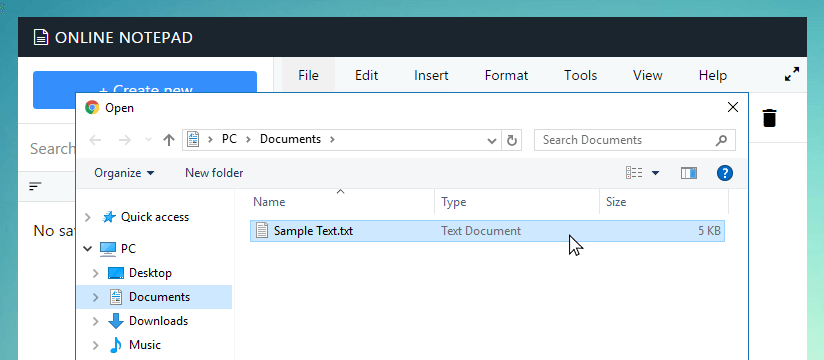
Explore these guides to make the most of Tinseo’s features, improve your productivity, and manage all your text files with ease. Remember, the more familiar you are with the editor’s tools, the faster and smoother your writing workflow becomes.
Getting Started Guides
Here are some detailed step-by-step instructions that might help you get started use Tinseo Online Notepad